This post is part of the Korean Apartment Homelab series.
Introduction
Across my previous posts, the word “backup” keeps appearing in the future tense. The hardware build post mentioned needing a backup plan. The cost post talked about data that was not being backed up at all. The Proxmox tips post covered scheduled backups briefly but acknowledged that everything was stored on the same server.
It was always the next thing I would get to. Then a Home Assistant update went wrong, and “next” became “now.”
The update appeared to complete normally, but Home Assistant would not start afterward. The dashboard was unreachable, and the logs showed errors I did not immediately understand. Rather than spending an evening troubleshooting a potentially broken configuration, I rolled back to the previous day’s snapshot. The entire recovery took less than a minute. I ran the same update again afterward, and it completed without issues. Whether it was a transient problem or something about the state of the system at the time, I never found out. I did not need to, because the backup made it irrelevant.
That experience did not teach me that backups are important. Everyone already knows that. What it taught me is that backups change how you approach maintenance. With a reliable backup, updating a service stops being a risk assessment and becomes a routine task. Without one, every update carries the question: what happens if this breaks?
This post covers how I structure backups across my homelab, why some services are included and others are not, and a scheduling problem I did not expect.
Not Everything Needs the Same Protection
The instinct when setting up backups is to back up everything. Every VM, every container, every night. It feels responsible. But on a single server with limited storage, backing up everything equally is neither practical nor necessary.
The better question is: what would it cost me to lose this service and rebuild it from scratch?
For some services, the answer is hours of reconfiguration. Home Assistant has hundreds of automations, device integrations, and dashboard customizations built up over months. Recreating that from memory would be painful and incomplete. Vaultwarden holds every password I use daily. Losing that database would be genuinely disruptive.
For other services, the answer is: not much. A Minecraft server running for a few friends can be rebuilt in an afternoon. A Windows 11 VM that exists to run government websites occasionally has no state worth protecting beyond a clean installation snapshot.
That distinction drives my entire backup strategy.
What Gets Backed Up Automatically
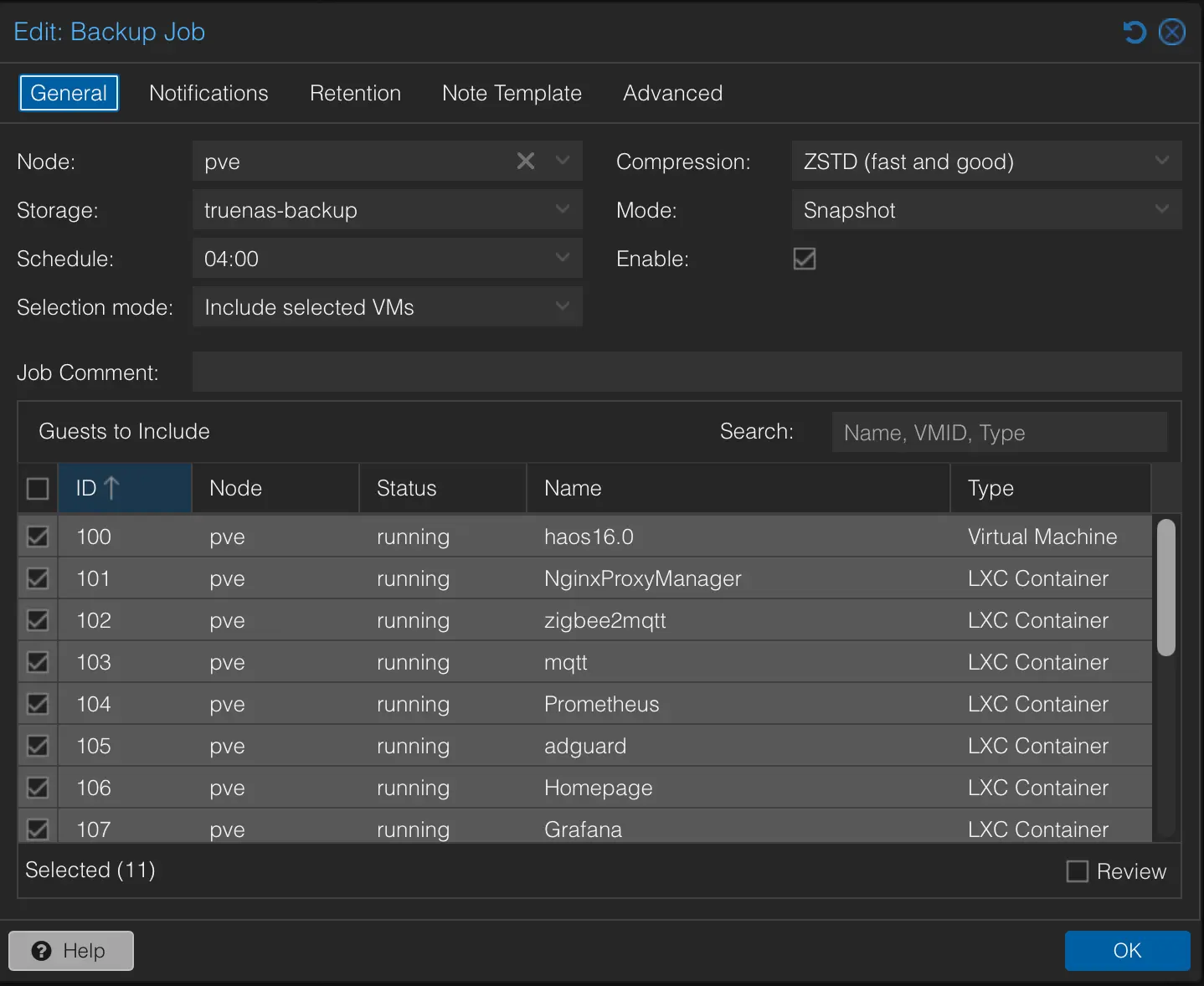
These services run scheduled backups through Proxmox’s built-in vzdump, every night at 4 AM with a two-week retention policy and zstd compression:
- Home Assistant
- Zigbee2MQTT
- MQTT (Mosquitto)
- Prometheus
- AdGuard Home
- Homepage
- Grafana
- Loki
- Cloudflared
- Vaultwarden
The common thread is that these services carry configuration and state that would be difficult or time-consuming to recreate. Home Assistant is the most obvious example, but even something like Prometheus, which might seem like just a metrics database, contains carefully tuned scrape configurations and recording rules. Grafana holds dashboard layouts, alert rules, and notification channel settings. Rebuilding any of these from scratch means remembering decisions I made weeks or months ago, which is exactly the kind of thing I will get wrong.
These services also share a practical characteristic: they are small. An LXC container running AdGuard Home or Cloudflared compresses down to a few hundred megabytes at most. Even with daily backups and two weeks of retention, the total storage consumed by all ten services is modest. The cost of backing them up is negligible compared to the cost of not having a backup when something goes wrong.
What Does Not Get Backed Up (And Why)
Jellyfin, Immich, Nextcloud, and TrueNAS
These four services share a common architecture: the VM itself runs on NVMe, but the actual data — media files, photos, documents — lives on the two enterprise HDDs managed by TrueNAS in a mirrored configuration.
Backing up these VMs through Proxmox’s scheduled backup would capture the operating system and application state, but not the terabytes of data on the HDDs. And the VM state alone is not particularly valuable. If the Nextcloud VM somehow became corrupted, I could rebuild it in an hour. The files on the HDD mirror would still be intact.
The real protection for these services comes from the HDD mirror itself. If one drive fails, the other has a complete copy. This is not a backup in the traditional sense — a mirror protects against hardware failure but not against accidental deletion or file corruption, since both drives reflect the same state. But for a homelab with limited storage, it is a reasonable trade-off.
For the most irreplaceable data — family photos in particular — I maintain additional copies on an external NVMe drive and a free cloud storage service. These are not automated. I copy important photos manually when I think of it, which is not ideal but covers the worst-case scenario of losing both HDDs simultaneously.
Minecraft
The server runs for a small group of friends and family. The world data is not irreplaceable, and rebuilding the server with Paper and Geyser takes an afternoon at most. If the player base grows or the world becomes more significant, I will add it to the scheduled backup. For now, it does not justify the storage.
Windows 11
I keep a single manual snapshot of the Windows VM in its cleanest state: fresh installation, VirtIO drivers, guest tools, and nothing else. This snapshot is more valuable than any automated backup could be. When security programs accumulate and slow the system down, I roll back to this snapshot and start fresh. The VM’s purpose is temporary tasks — government websites, HWP documents, occasional Excel work — so there is no persistent state worth protecting beyond that clean baseline.
Backup Storage: The Same-Server Reality
All scheduled backups currently write to the HDD storage on the same physical server. This protects against the most common failure modes: bad updates, configuration mistakes, accidental changes, and software corruption. The Home Assistant recovery I described earlier is exactly this scenario.
What it does not protect against is the server itself failing. If the NVMe drive holding the VMs dies, the backups on the HDD are fine. But if the entire server is lost — fire, theft, catastrophic power event — everything goes with it, backups included.
I am aware of this gap. A proper off-site backup strategy, whether to a cloud provider, a secondary NAS at a different location, or even a regular external drive rotation, is something I need to implement. The obstacle is not technical complexity. It is the cost of additional storage and the friction of maintaining another system.
For now, the critical irreplaceable data (photos) has external copies. The homelab configuration (which services run, how they are set up) is documented well enough that I could rebuild the server from scratch if absolutely necessary. It would take days, not weeks, and the documentation across this blog series is itself a form of disaster recovery plan.
But I would rather not test that theory.
The Swap Problem
After running scheduled backups for several weeks, I noticed something in Grafana’s memory dashboard. Every morning, shortly after 4 AM, a small amount of swap usage appeared on the host. It cleared within an hour, but the pattern was consistent.
The cause became obvious once I thought about what happens at 4 AM: ten LXC containers get backed up simultaneously.
Proxmox’s vzdump creates a snapshot of each container before copying its data. During the snapshot phase, the system needs to maintain both the live state and the snapshot state briefly. With ten containers snapshotting at the same time, the memory overhead adds up. My server has 64GB of RAM and typically uses around 50% during normal operation. The backup surge pushes usage high enough that the kernel decides to swap, even with vm.swappiness set to 1.
The swap usage is small — tens of megabytes, not gigabytes — and it resolves quickly. It is not causing problems today. But it is the kind of thing that could become a problem if I add more services or if one of the existing ones grows in size.
The solution I am planning is straightforward: split the backup job into two groups with a thirty-minute gap between them. The first group runs at 4:00 AM, the second at 4:30 AM. This reduces the peak memory pressure by roughly half, which should keep the backup process entirely within available RAM.
I have not implemented this yet because the current swap usage is genuinely minor. But documenting it here serves two purposes: it reminds me to do it before the problem grows, and it might save someone else from wondering why their server swaps every morning at the same time.
Snapshots vs Backups: Different Tools for Different Situations
Proxmox offers both snapshots and backups, and understanding when to use each has simplified my maintenance routine significantly.
Snapshots are instant and live on the same storage as the VM or container. They capture the exact state at a point in time. I take a snapshot before any risky operation: updating Home Assistant, changing Nextcloud configuration, modifying Grafana alert rules. If the change breaks something, I roll back the snapshot in seconds. Once I confirm the change is stable, I delete the snapshot to reclaim storage.
Snapshots are not backups. They depend on the same storage as the original data. If the NVMe drive fails, the snapshots are gone too. They are an undo button, not a safety net.
Backups are full copies stored on separate storage (the HDDs in my case). They take longer to create and consume more space, but they survive the failure of the original storage. The scheduled nightly backups are my safety net against problems I do not notice immediately — the kind that might corrupt data over several days before symptoms appear.
The practical workflow is:
- Before any manual change: take a snapshot, make the change, verify, delete the snapshot.
- Every night at 4 AM: automated backup captures the current state of all critical services.
- Before major changes (Proxmox host updates, storage reorganization): take a manual backup in addition to the scheduled one.
This two-layer approach means I am never more than one day away from a known-good state for critical services, and never more than one click away from undoing a change I just made.
What I Would Do Differently
If I were starting this homelab today with what I know now, I would change two things about my backup approach.
First, I would set up scheduled backups from day one, not after the first incident. The configuration takes fifteen minutes. The peace of mind is immediate. There is no reason to wait until something breaks to prove the value.
Second, I would buy a larger external drive specifically for off-site backup rotation. A 4TB external HDD costs less than the stress of wondering what happens if the server dies. A weekly or monthly copy of the most critical backups to an external drive, stored somewhere other than next to the server, closes the biggest remaining gap in my strategy.
The homelab community sometimes discusses elaborate backup schemes involving Proxmox Backup Server, cloud storage tiers, and automated replication. Those solutions are valid for larger setups, but for a single-server homelab in an apartment, the priorities are simpler: back up what matters, store it on separate physical media, and keep a copy somewhere else. Everything beyond that is optimization.
Lessons Learned
Not every service deserves the same backup treatment. Backing up ten lightweight LXC containers costs almost nothing in storage or time. Backing up a multi-terabyte media library every night would be wasteful. Match the backup frequency and depth to the actual recovery cost of each service.
Mirrors are not backups. The mirrored HDDs protect against drive failure, but they faithfully replicate deletions and corruption to both drives simultaneously. A mirror is a first line of defense, not a complete strategy.
Backups change your behavior. The most valuable thing about having reliable backups is not the recovery itself. It is the willingness to update, experiment, and change configuration without fear. A homelab without backups becomes a homelab where you avoid touching anything that works, which defeats the purpose of running one.
Schedule backups during off-hours, but think about resource impact. Running ten backup jobs simultaneously at 4 AM seemed harmless until the swap usage appeared. Staggering backup schedules is a small adjustment that prevents a small problem from becoming a large one.
Test your recovery. A backup you have never restored is a backup you hope works. The Home Assistant recovery was unplanned, but it proved that the backup pipeline actually produces usable results. Periodically restoring a backup to a test environment — or even just verifying that the backup file is not corrupted — is worth the effort.
What’s Next
The off-site backup gap is the most important thing I have not yet addressed. The plan is to establish a regular schedule of copying critical backups to the external NVMe drive and storing it separately from the server. Whether that evolves into a cloud-based backup tier depends on how much storage I end up needing and what it costs.
I also want to extend backup coverage to the VM-based services that currently rely solely on the HDD mirror. Nextcloud in particular carries calendar data, contacts, and file organization metadata that would be tedious to recreate. A lightweight backup of just the Nextcloud database and configuration, separate from the full file storage, might be the right middle ground.
As the homelab grows, the backup strategy has to grow with it. But the core principle stays the same: protect what you cannot easily rebuild, and accept that some things are cheaper to recreate than to preserve. The goal is not zero data loss. The goal is knowing exactly what you would lose and being comfortable with that answer.